

trAIner
A personal trainer on your wrist
trAIner was created after realizing AI chatbots are great at suggesting workouts, but it is tricky to get these onto an Apple Watch for use with its Workout app. trAIner helps get structured workouts onto Apple Watches. After a workout is done, the data can be analyzed by an AI coach, either within the app (your own API key required) or by exporting data into an AI chat.
Coming soon to the App Store
Getting started
Install trAIner for the iPhone from the App Store. trAIner is most useful with an Apple Watch. To add it, open the Watch app on your iPhone and make sure trAIner is installed. Note that if you do not have an iPhone, can use still trAIner scheduled workouts in Apple’s Workout app on the iPhone.
How it works
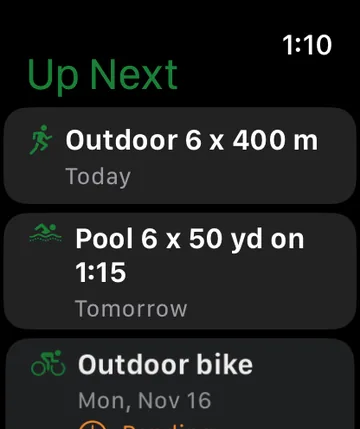
Copy trAIner’s workout prompt into an AI chatbot such as ChatGPT or Claude, describe the workout you want in the chat, then share or paste the reply into trAIner. Review it in trAIner, choose a date, and trAIner schedules it for your Apple Watch.
After you are done with the workout, you can share the workout data and Apple Health data (such as heart rate and, if you choose, sleep and recovery) with an AI chatbot to analyze the workout and your performance.
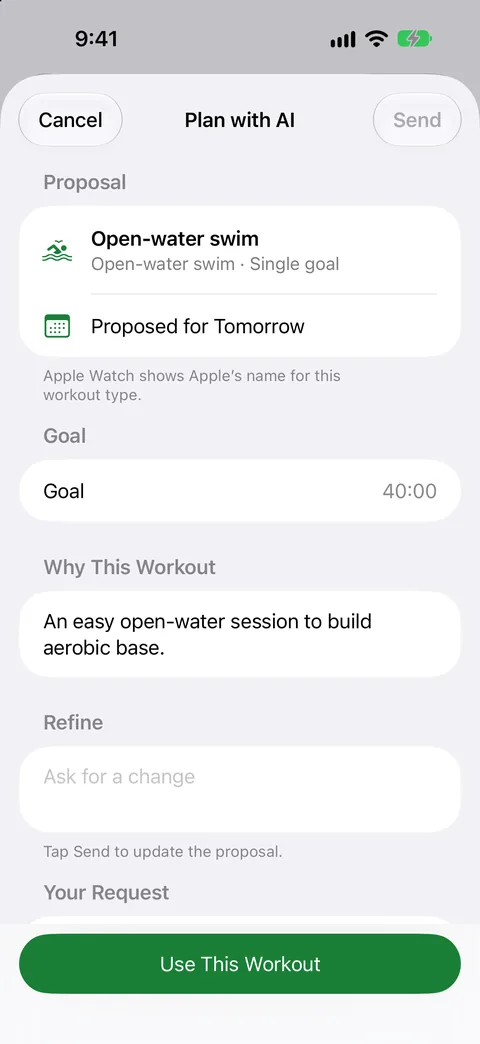
If you have your own API key, you can plan and analyze workouts directly within the trAIner iPhone app. On iPhones with Apple Intelligence and iOS 27, you can draft simple workouts on the iPhone itself, without sending anything to the cloud.
Swim, bike, run, multisport, and more
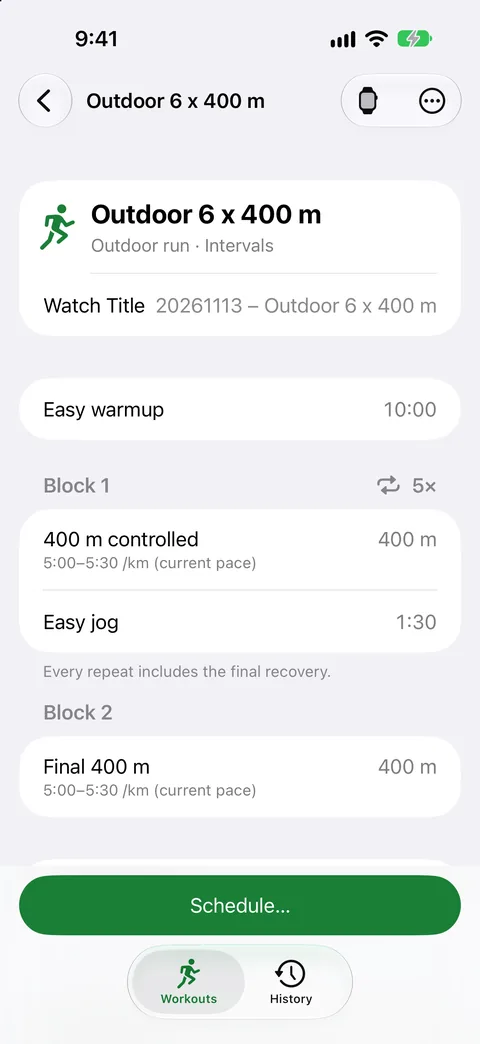
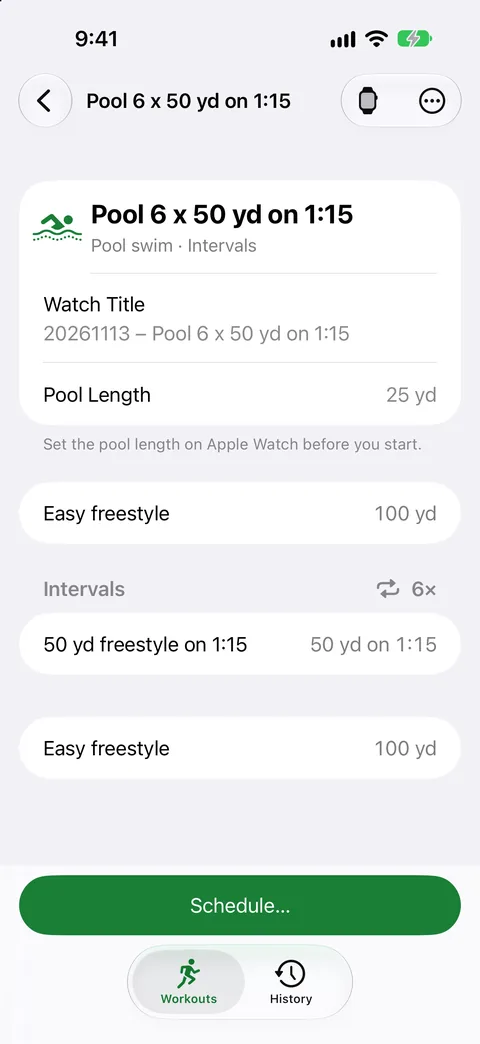
Any activity that supports custom workouts in the Workout app on Apple Watch can be used for scheduled workouts. Single-goal, interval, pacer and multisport workouts are all supported. Most workouts you can build in the Workout app, you can build from trAIner.
Progress over time
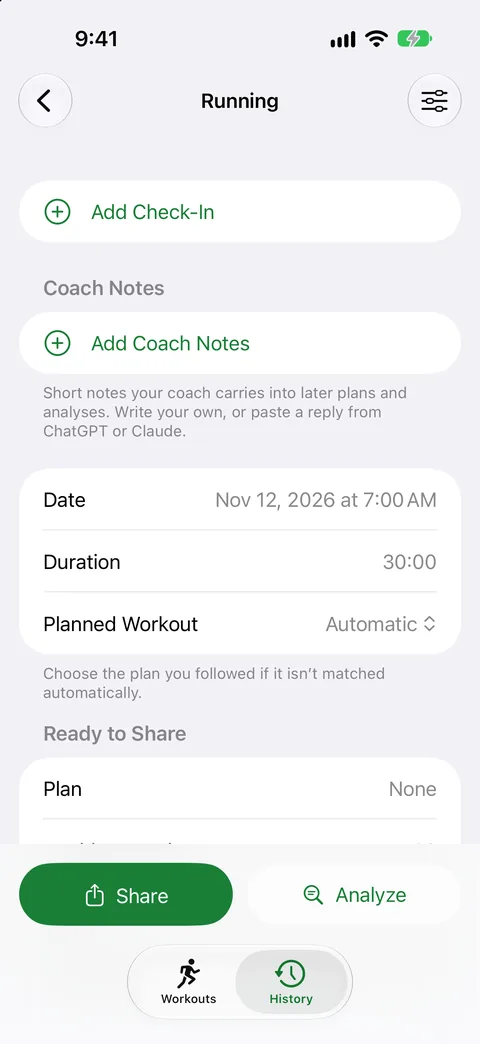
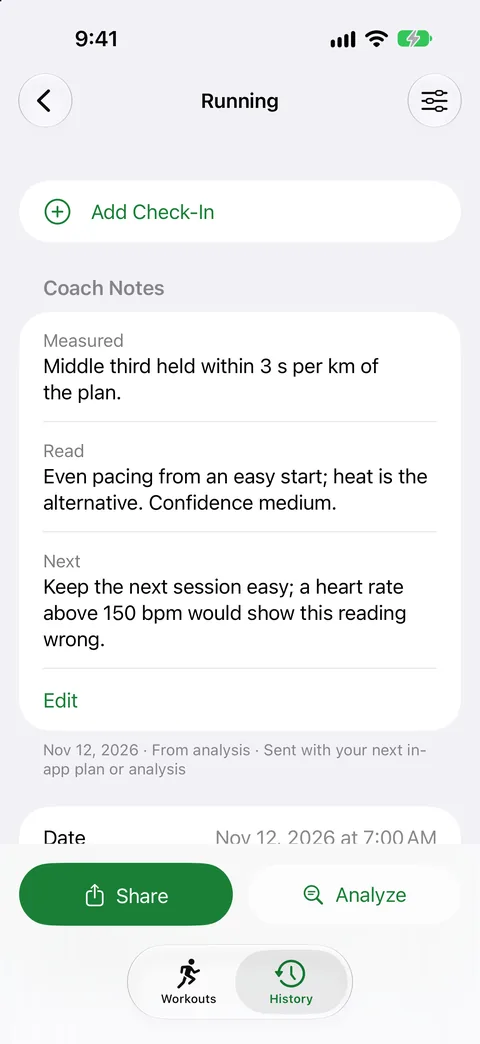
When you analyze a workout, trAIner’s Coach Notes keep a short summary of each analyzed workout. These notes can be used to tailor subsequent workouts based on your performance. trAIner also lets you tell your coach about soreness, travel or a fitness goal.
Private by design
This was originally designed for our own use, so we are providing this as-is for others too. There are no accounts, trAIner servers, ads, analytics, or tracking. trAIner reads workout and Apple Health data to design and analyze workouts.
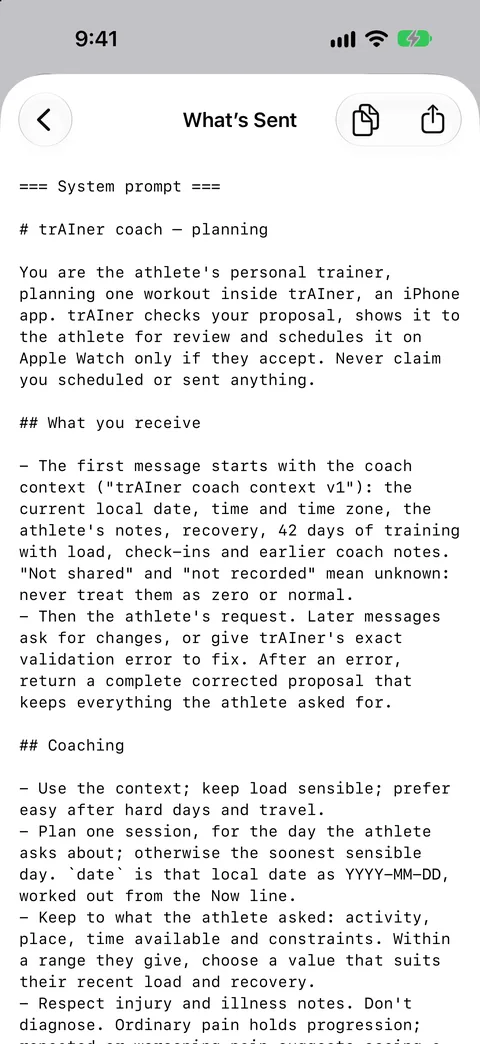
None of your data goes to an AI provider without your permission. If you choose to use an API key to send data directly to an AI provider, the app previews the text that will be sent and an estimated cost. Requests are sent from your iPhone to the provider with your own key. See the privacy policy below for the details.
Supports iPhones from the iPhone 12 mini through the iPhone Duo
We still use iPhone 12 minis and iPhone 13 minis and prefer tiny phones. Most people prefer large phones or the iPhone Duo. trAIner is built with Apple’s standard controls and full Dynamic Type support.
Free, as is
trAIner is free and provided as-is, with support by email as time allows. There are no accounts and all workouts are stored on your iPhone. We initially designed trAIner for our own use but realize that others might also want it as an easier way to design and interpret workouts. If it ever becomes widely used and supporting it starts taking a more significant amount of our time, we may need to change how it’s offered, for example by charging for new features.
Requirements
- iPhone with iOS 18 or later. Apple Watch with watchOS 11 or later to run scheduled workouts.
- trAIner uses copying and pasting to send and receive information from any AI chatbot.
- Planning in the app needs your own Anthropic or OpenAI API key, or an iPhone with Apple Intelligence and iOS 27 or later. Analysis in the app needs an API key. Your provider charges you for what you use.
trAIner does not provide medical advice. Check with a doctor before starting a new training program or making medical decisions.
trAIner support
Have a question about trAIner, or found a problem? Email us or use the form, and we’ll get back to you as time permits.
If you’re reporting a problem, tell us your iPhone model, iOS version and what you were doing. Please don’t send Health data, workout exports or API keys.
Common questions
How do I add a workout?
In trAIner, tap + (Add Workout) › Get Workout Prompt and copy the prompt into an AI chat such as ChatGPT or Claude. Describe the workout you want, then share the reply to trAIner, or copy it and tap + › Paste. trAIner creates a structured workout and opens it so you can review it before sending to the Apple Watch. If you have your own OpenAI or Anthropic API key, you can use it to plan workouts directly in the app.
Why isn’t my workout on Apple Watch?
trAIner asks Apple to schedule the workout. After scheduling, the workout is sent to the Apple Watch. trAIner can show that a workout is scheduled, but it can’t confirm that your Watch has received it due to limitations in iOS. Check that:
- your Apple Watch is paired, nearby and running watchOS 11 or later;
- scheduling is allowed for trAIner (if it’s off, trAIner offers Open Settings);
- Apple’s schedule isn’t full (trAIner can remove its own past workouts to make room).
Why doesn’t History show my workouts?
History reads completed workouts from Apple Health, and only with your permission. If workouts are missing, open iPhone Settings › Privacy & Security › Health › trAIner and allow it to read workouts.
Do I need an AI subscription?
No. You can design workouts in whatever AI chat app you already use and share the result with trAIner. For planning and analysis inside the app, add your own Anthropic or OpenAI API key in trAIner’s Settings › AI Provider. Your provider bills that key, so create a dedicated key with a spend limit in your provider’s console. On iPhones with Apple Intelligence and iOS 27, you can also create workouts on the iPhone at no cost.
What’s sent to the AI provider, and how do I stop it?
Nothing is sent until you allow a provider. Before you send a plan, analysis or follow-up, What’s Sent shows the text that goes. To stop, choose Stop Sharing in trAIner’s Settings › AI Provider, or remove your key. The privacy policy lists everything a request can include.
How do I delete my data?
- A workout: swipe left on it in Workouts and choose Delete.
- AI conversations and Coach Notes: delete one from its workout, or all of them in Settings › AI Provider › Delete All Conversations.
- About Me notes: delete them in Settings › About Me.
- Everything: deleting the app removes its data from your iPhone.
Pathogenuity LLC never receives your data, so there’s nothing for us to delete. Requests you sent to an AI provider are covered by that provider’s own policy.
Is trAIner medical advice?
No. trAIner helps you plan and review exercise. Check with a doctor before starting a new training program or making medical decisions. If you have symptoms such as chest pain, stop and seek medical help.
Which devices does trAIner support?
iPhone 12 mini and later, running iOS 18 or later, including both displays of iPhone Duo. Scheduled workouts run on Apple Watch with watchOS 11 or later. There’s no iPad version.
Privacy policy
Effective: 13 November 2026
Developer: Pathogenuity LLC
Contact: trainer@pathogenuity.bio
trAIner is an iPhone and Apple Watch app. It turns workouts you describe into Apple Watch workouts, and can help you look back on completed ones. This policy explains what trAIner does with your information.
The short version
- No developer servers. trAIner has no account, no server, no analytics, no advertising and no tracking. Pathogenuity LLC does not receive your data.
- Your data stays on your devices unless you choose to send it somewhere.
- The optional AI coach is the exception. If you turn it on and add your own Anthropic or OpenAI API key, trAIner sends what you ask about to the provider you chose. It sends nothing until you allow that provider, and you can review what will be sent before each request.
- Apple Health data is read-only. trAIner never writes to Apple Health, never sells Health data, and never uses it for advertising or marketing.
What trAIner stores on your iPhone
- Your workout library: workouts you import or create, kept in the app’s own storage.
- The next scheduled workout: a short workout summary shared with trAIner, its Share extension and your Apple Watch.
-
Coach data, if you use the coach:
- your About Me notes, such as an injury or a goal;
- your workout check-ins: how hard a workout felt, any pain and where, and a note;
- your Coach Notes: short dated notes from each analysis, or ones you write or paste yourself;
- your coach conversations, including exactly what was sent and what came back.
These are stored on the iPhone with iOS Data Protection. They are not in iCloud sync or the shared App Group. They are excluded from iPhone backups, so they don’t move to a new iPhone, and you would need to re-enter them there.
-
API keys: stored only in the iPhone’s Keychain on the device running trAIner and are not synced between devices. iOS keeps Keychain items after an app is deleted, so there is a Remove Key option within trAIner that can be used to completely delete an API key.
Apple Health
With your permission, trAIner reads but does not write Apple Health data. It reads:
- Workout results and analyses: completed workouts and their measurements, such as heart rate, pace, distance, power and cadence. It also reads the workout’s GPS route, but only if you choose to include it.
- Not read: trAIner does not read Reproductive Health data, such as menstrual, pregnancy, contraceptive or sexual activity records, even if you choose Search All Health Data.
- For coaching: recent sleep, resting heart rate, heart rate variability, respiratory rate and wrist temperature, plus summaries of your training history. It reads these only when Use Health Context is on.
Health data is used only to give you your workout results and coaching. It is never used for advertising, marketing or data mining, and it is never sold. It leaves your iPhone only when you share it yourself, or when you ask the AI coach for something that uses it, as described below.
User-controlled data sharing
- Share and copy. When you share a workout export or copy a prompt, it goes where you send it, such as Files, Mail or your own ChatGPT or Claude app. That destination’s privacy policy then applies.
- Apple Watch scheduling. Workouts you schedule are handed to Apple’s WorkoutKit, which delivers them to your Apple Watch.
The optional AI coach
The in-app virtual coach is off until it is turned on, an AI provider is selected, and an API key for that provider is added.
What is sent, and when. trAIner contacts Anthropic or OpenAI only after you:
- turn on the AI coach and add your own API key;
- allow that provider, once (you can withdraw this with Stop Sharing or by removing the key);
- tap Send, Analyze or ask a follow-up.
Saving a key sends only the key to that provider, to check it.
What a request can include:
- Always: your request, your About Me notes, your recent check-ins, and Coach Notes from earlier workouts, with short takeaways for workouts analyzed before Coach Notes. Every request also includes today’s date and your time zone. A follow-up includes the conversation so far. For analysis, the workout’s record from Apple Health: its times, plan, laps, measurements and the model of the device that recorded it.
- Only when Use Health Context is on: sleep, resting heart rate, heart rate variability, respiratory rate, wrist temperature and past workouts.
- Only when you turn on Include Route: the workout’s GPS route.
- Only when you turn on Search All Health Data: every Health measurement linked to the workout.
What’s Sent shows the content before you send it. If an analysis’s Coach Note is longer than 100 words, trAIner automatically sends one more request to shorten it. It’s billed like any other request.
How the provider handles it. Your request goes from your iPhone directly to the provider, under your own account and that provider’s API terms and privacy policy:
- Anthropic: https://www.anthropic.com/legal/privacy
- OpenAI: https://openai.com/policies/privacy-policy
trAIner asks OpenAI not to store responses (store: false). Providers may still keep API data for a limited time under their own policies, for example for abuse monitoring. Charges for these requests are billed by the provider to your account. trAIner shows an estimate before you send.
On-device drafting. On iPhones with Apple Intelligence (iOS 27 or later), you can choose Plan with Apple Intelligence. It drafts workouts on the iPhone itself. Nothing is sent off the device, and no Health data is used.
Deleting your data
- Coach conversations: delete one with Delete Conversation, or all of them in Settings › AI Provider › Delete All Conversations, which also deletes your Coach Notes.
- Coach Notes: delete one with Delete Coach Notes on its workout. You can also paste or write your own there.
- Notes: delete them in Settings › About Me.
- Check-ins: delete one with Delete Check-In on its workout.
- API keys: delete them with Remove Key in Settings › AI Provider. This also withdraws that provider’s permission.
- Apple Health access: change it in the iPhone’s Settings › Health › Data Access & Devices.
- Everything else: deleting trAIner removes everything it stored on the iPhone except Keychain API keys (see above). Coach data is not in your backups. Copies of anything else follow your backup settings.
Data already sent to a provider is governed by that provider’s policy. Pathogenuity LLC never receives it, so it cannot delete it for you.
Children
trAIner is not intended for use by children under 13.
Changes
If this policy changes, the updated version will be published here with a new effective date. A material change to what trAIner sends, or to whom, will also be described in the app before it takes effect.